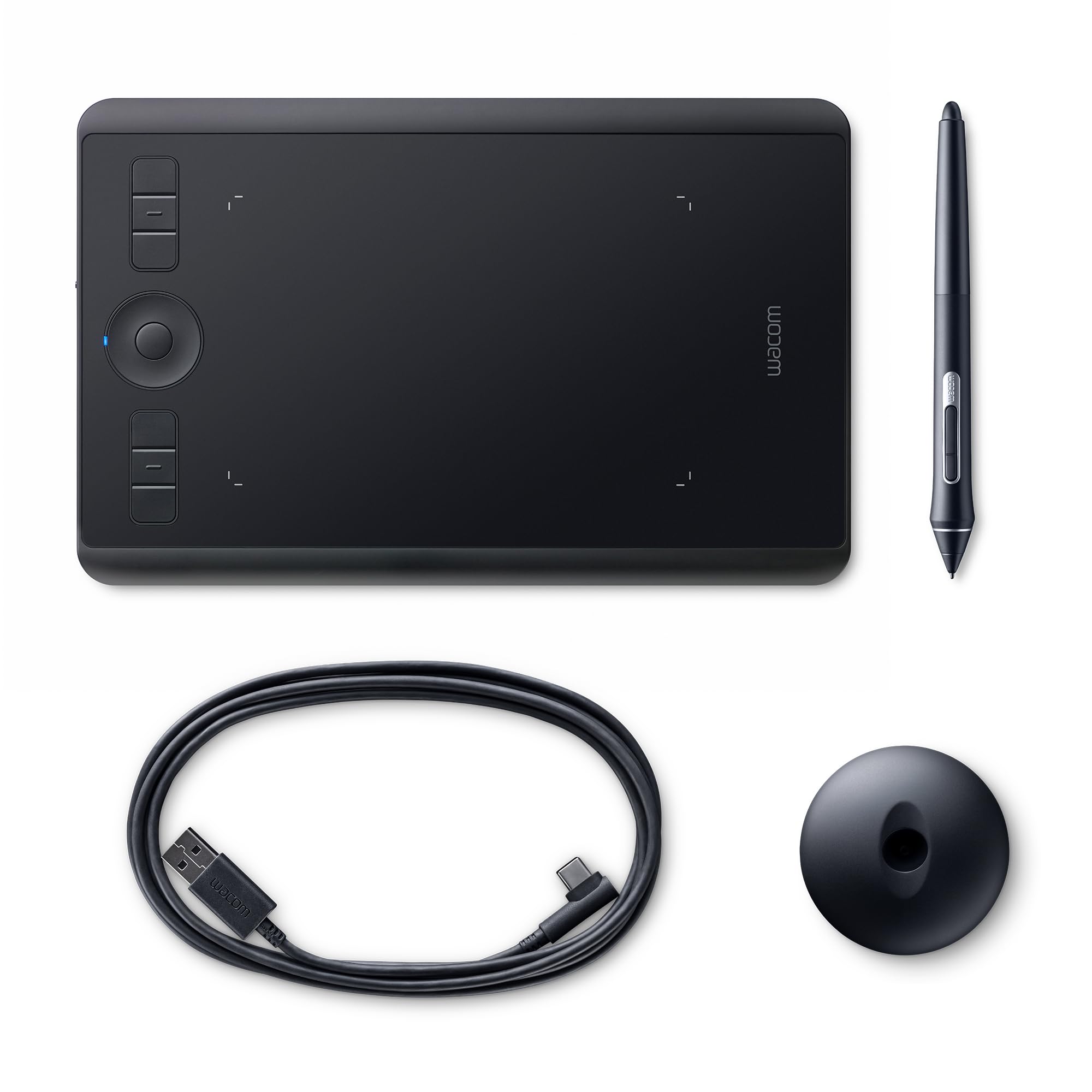
Wacom Intuos Pro Large with Pro Pen 2
Exceptional pen performance, the Wacom Pro Pen 2 features 8192 levels of pressure sensitivity, tilt-response and virtually lag-free tracking Speed your workflow with multi-touch gestures, customizable Express Keys, radial menus and pen side switches Super-slim tablet design with a smaller, more compact footprint and premium materials Accessories (sold separately) include ballpoint pen, fine tip pen, pencil (available mid 2017), texture sheets (from smooth to rough), soft cases, pen nibs, refills Redefining the professional standard in creative pen tablets. Built with high quality materials and designed to make the most of the amazing Wacom Pro Pen 2, Wacom Intuos Pro is our finest creative pen tablet to date. With built-in Bluetooth connectivity and a sleek new design, it's easy to set-up and looks great on your desk. Start creating your next stand-out project. Directly digital, better than ever. Connect to your Mac or Windows PC with USB or built-in Bluetooth, install drivers and you're ready to start work directly in the software of your choice. The ultra-responsive Wacom Pro Pen 2 connects you to your creative work like never before. Quality materials and compact design give you the perfect drawing space. Natural and precise. Our new Wacom Pro Pen 2 is designed to quickly become a natural extension of your hand. Its exceptional sensitivity and responsiveness gives you the control you need to take your work to the next level. Outstanding pressure and natural tilt support with virtually no lag. No batteries or recharging. Slim and sleek design. Wacom Intuos Pro comes in both medium and large sizes. Each has a smaller, more compact footprint than previous models. Wacom Intuos Pro is built using premium materials such as black anodized aluminium and fiberglass composite resin. The result is a pen tablet that feels reassuringly strong but is a mere 8mm thick. Included with every Wacom Intuos Pro, the new steel based pen stand stores your spare nibs and has a built-in.
Exceptional pen performance, the Wacom Pro Pen 2 features 8192 levels of pressure sensitivity, tilt-response and virtually lag-free tracking Speed your workflow with multi-touch gestures, customizable Express Keys, radial menus and pen side switches Super-slim tablet design with a smaller, more compact footprint and premium materials Accessories (sold separately) include ballpoint pen, fine tip pen, pencil (available mid 2017), texture sheets (from smooth to rough), soft cases, pen nibs, refills Redefining the professional standard in creative pen tablets. Built with high quality materials and designed to make the most of the amazing Wacom Pro Pen 2, Wacom Intuos Pro is our finest creative pen tablet to date. With built-in Bluetooth connectivity and a sleek new design, it's easy to set-up and looks great on your desk. Start creating your next stand-out project. Directly digital, better than ever. Connect to your Mac or Windows PC with USB or built-in Bluetooth, install drivers and you're ready to start work directly in the software of your choice. The ultra-responsive Wacom Pro Pen 2 connects you to your creative work like never before. Quality materials and compact design give you the perfect drawing space. Natural and precise. Our new Wacom Pro Pen 2 is designed to quickly become a natural extension of your hand. Its exceptional sensitivity and responsiveness gives you the control you need to take your work to the next level. Outstanding pressure and natural tilt support with virtually no lag. No batteries or recharging. Slim and sleek design. Wacom Intuos Pro comes in both medium and large sizes. Each has a smaller, more compact footprint than previous models. Wacom Intuos Pro is built using premium materials such as black anodized aluminium and fiberglass composite resin. The result is a pen tablet that feels reassuringly strong but is a mere 8mm thick. Included with every Wacom Intuos Pro, the new steel based pen stand stores your spare nibs and has a built-in.
Exceptional pen performance, the Wacom Pro Pen 2 features 8192 levels of pressure sensitivity, tilt-response and virtually lag-free tracking Speed your workflow with multi-touch gestures, customizable Express Keys, radial menus and pen side switches Super-slim tablet design with a smaller, more compact footprint and premium materials Accessories (sold separately) include ballpoint pen, fine tip pen, pencil (available mid 2017), texture sheets (from smooth to rough), soft cases, pen nibs, refills Redefining the professional standard in creative pen tablets. Built with high quality materials and designed to make the most of the amazing Wacom Pro Pen 2, Wacom Intuos Pro is our finest creative pen tablet to date. With built-in Bluetooth connectivity and a sleek new design, it's easy to set-up and looks great on your desk. Start creating your next stand-out project. Directly digital, better than ever. Connect to your Mac or Windows PC with USB or built-in Bluetooth, install drivers and you're ready to start work directly in the software of your choice. The ultra-responsive Wacom Pro Pen 2 connects you to your creative work like never before. Quality materials and compact design give you the perfect drawing space. Natural and precise. Our new Wacom Pro Pen 2 is designed to quickly become a natural extension of your hand. Its exceptional sensitivity and responsiveness gives you the control you need to take your work to the next level. Outstanding pressure and natural tilt support with virtually no lag. No batteries or recharging. Slim and sleek design. Wacom Intuos Pro comes in both medium and large sizes. Each has a smaller, more compact footprint than previous models. Wacom Intuos Pro is built using premium materials such as black anodized aluminium and fiberglass composite resin. The result is a pen tablet that feels reassuringly strong but is a mere 8mm thick. Included with every Wacom Intuos Pro, the new steel based pen stand stores your spare nibs and has a built-in.
Exceptional pen performance, the Wacom Pro Pen 2 features 8192 levels of pressure sensitivity, tilt-response and virtually lag-free tracking Speed your workflow with multi-touch gestures, customizable Express Keys, radial menus and pen side switches Super-slim tablet design with a smaller, more compact footprint and premium materials Accessories (sold separately) include ballpoint pen, fine tip pen, pencil (available mid 2017), texture sheets (from smooth to rough), soft cases, pen nibs, refills Redefining the professional standard in creative pen tablets. Built with high quality materials and designed to make the most of the amazing Wacom Pro Pen 2, Wacom Intuos Pro is our finest creative pen tablet to date. With built-in Bluetooth connectivity and a sleek new design, it's easy to set-up and looks great on your desk. Start creating your next stand-out project. Directly digital, better than ever. Connect to your Mac or Windows PC with USB or built-in Bluetooth, install drivers and you're ready to start work directly in the software of your choice. The ultra-responsive Wacom Pro Pen 2 connects you to your creative work like never before. Quality materials and compact design give you the perfect drawing space. Natural and precise. Our new Wacom Pro Pen 2 is designed to quickly become a natural extension of your hand. Its exceptional sensitivity and responsiveness gives you the control you need to take your work to the next level. Outstanding pressure and natural tilt support with virtually no lag. No batteries or recharging. Slim and sleek design. Wacom Intuos Pro comes in both medium and large sizes. Each has a smaller, more compact footprint than previous models. Wacom Intuos Pro is built using premium materials such as black anodized aluminium and fiberglass composite resin. The result is a pen tablet that feels reassuringly strong but is a mere 8mm thick. Included with every Wacom Intuos Pro, the new steel based pen stand stores your spare nibs and has a built-in.
in 3 offers
The lowest price for Wacom Intuos Pro Large with Pro Pen 2 right now is $498.00 at Harvey Norman, compared across 3 retailers.
The all-time low was $162.05 on 5 June 2026 — today's price is 207% above the lowest ever. It has been notably cheaper before — worth setting a price alert.
Prices last updated 6 July 2026.
Last updated at 06/07/2026 01:53:11
Wacom Intuos Pro Large
Wacom Intuos Pro Creative Pen Tablet Large
Delivery $15
Wacom Intuos Pro Creative Pen Tablet, Large
Free delivery between 9–17 July
originally posted on rubbermonkey.co.nz
Feel free to take this review with a pinch of salt as my case may be completely unique.This is my fifth Wacom tablet. I'm not an illustrator (more of a scribbler), so this really is as a replacement to a mouse more than anything, as I don't use any of the buttons. But it helps massively in Photoshop and is sooo much easier to use than one. It sits nice and lightly in the hand. And when you get used to it, you'll possibly find it more natural, as I did. Just like a pencil (or pen). But if you've never used one before, I'd recommend getting a small one first, and if you take to it, move up to a larger one to mirror the size of your screen. (Desk space permitting of course.)Anyway. On to why I didn't give it a 5 star...if you're upgrading from the original Wacom ... MoreFeel free to take this review with a pinch of salt as my case may be completely unique.This is my fifth Wacom tablet. I'm not an illustrator (more of a scribbler), so this really is as a replacement to a mouse more than anything, as I don't use any of the buttons. But it helps massively in Photoshop and is sooo much easier to use than one. It sits nice and lightly in the hand. And when you get used to it, you'll possibly find it more natural, as I did. Just like a pencil (or pen). But if you've never used one before, I'd recommend getting a small one first, and if you take to it, move up to a larger one to mirror the size of your screen. (Desk space permitting of course.)Anyway. On to why I didn't give it a 5 star...if you're upgrading from the original Wacom Intuos Pro from 2013, they've done away with the silent glossy top, and replaced it with a textured surface. That might seem ok if you didn't own, or use, one of the earlier models, but if you have, you get used to that silence and the smoothness. And jumping to this one was most annoying. It also took Wacom tech support over a week to get it up and running for me. And it still 'skips a beat' every now and then, disappearing off screen for about 5 seconds or so when switching between windows or apps. There is some good news though. If you prefer a different surface, unlike this new one they refer to as being more like the natural feel of paper or card, you can swap it out for either a smother surface (which is apparently approximately 30% rougher than the previous surface that I'm used to), or ever for a courser one. But it'll cost you more.I'm still waiting for my replacement surface. And I'm hoping it's easy to fit than it looks.In summary...• If you're an illustrator, I'd definitely recommend this.• If you use Photoshop I'd recommend this, and• if you suffer any kind of pain or discomfort through clicking (and especially gripping) a mouse all day long, it worked for me, and might just work for you too.But if you're expecting the kind of top notch support you get from the likes of Apple, don't. The packaging might look good, but the company has a long way to go.
originally posted on bhphotovideo.com
Ive been doing digital art since 1997 (including a degree in multimedia & website development). Ive used a mouse since the beginning for all of my (for example) Photoshop work. I picked up a Wacom Intuos Pro (size large) approximately 5 months ago and am finally at a point where Im capable of writing a proper review. I say finally because this drawing tablet most certainly has a learning curve to it... and I didnt want to rush a review until I felt comfortable with all of its attributes; both good and bad.The Wacom Intuos Pro is an incredible tool for the digital artist. The craftsmanship is terrific... from the packaging to the actual tablet, pen, and stand - its all well done. Nothing feels cheap. When picking up the pen, you immediately get a sense that this ... MoreIve been doing digital art since 1997 (including a degree in multimedia & website development). Ive used a mouse since the beginning for all of my (for example) Photoshop work. I picked up a Wacom Intuos Pro (size large) approximately 5 months ago and am finally at a point where Im capable of writing a proper review. I say finally because this drawing tablet most certainly has a learning curve to it... and I didnt want to rush a review until I felt comfortable with all of its attributes; both good and bad.The Wacom Intuos Pro is an incredible tool for the digital artist. The craftsmanship is terrific... from the packaging to the actual tablet, pen, and stand - its all well done. Nothing feels cheap. When picking up the pen, you immediately get a sense that this tool will last you a very, very long time.Initial setup is relatively straightforward - if you can find your way through a new grocery store on vacation, you can set this tablet up on your computer.Customization, on the other hand, takes a bit of trial-and-error. For instance, you can set specific commands to buttons on both the pen and tablet for every software program you use... and it takes some time to figure out what youll like/dont like and how to set them up. I personally recommend youtube to get some nice, professional recommendations on this subject.The tablet comes with a multitude of buttons on the side you can use. I frankly am quicker with keyboard shortcuts so dont use them that often... but there are a couple that are terrific (for example: the precision button which lets you control the pen in a much more finite way when doing detail work). Most go unused however. Id rather see them shrink these buttons by 50% (or more) and give me that real estate on the table for a larger drawing surface.Speaking of the surface - it feels great when drawing! No complaints there. Its incredibly natural though there is ONE thing that takes quite a bit to learn: when moving a mouse, the pointer on screen is always in the spot you left it (regardless if you pick up the mouse and move it to a new spot on your table). However, with a Wacom tablet its quite different: your tablet is a physical layout of your computer monitor: if you leave the mouse curser in the bottom left of your computer screen, your mouse will jump to a completely different position if you drop your hand (and stylus) down on the tablet somewhere else. This may not make the most sense, but you will immediately understand what Im saying soon as you get this tool. In no way am I saying this is a dealbreaker... but it definitely takes a bit to retrain your brain to treat the stylus differently than the mouse.I really only have two complaints (and both I can live with).1) A mouse is way, WAY easier to use when navigating websites (for example). The reason is simple: most mice out there have a scroll wheel allowing you to quickly scroll up/down. I really wish the Wacom stylus had this feature built right in (a little scroll wheel would be AMAZING for navigating websites or even adjusting brush sizes).2) The tablet supports touch sensitivity (ie: your finger) which has worked great (and is a good way to quickly swipe/slide/nav websites and pages using multi-touch gestures. My only complaint is Ive had this feature break on me twice requiring me to remove the hardware and reinstall. Ive finally given up after the 2nd break and am just living without the key features: I can still move my mouse around using a finger, but cant double-tap or multi-finger gesture. Ug... maybe Ill get around to reinstalling b/c these features are good.All-in-all, I have one piece of advice that you should strongly consider if purchasing a Wacom tablet of your own: hide your mouse for a few weeks and force yourself to use the stylus/tablet. Trust me on this! If your mouse is easily at hand, itll be easy to pick up whenever you first struggle with learning the tablet... and then you have to start all over again with the learning process. Hide the mouse... use the tablet exclusively and youll see after about 3 weeks that youre a pro! Trust me. :)
originally posted on bhphotovideo.com
The few basic shortcomings of this tablet are somewhat baffling, considering how long Wacom has been in this business. The pen is thicker than typical art pens, an adjustment for many artists. For some reason, the pen does not fit well in the holder and my generic pen rest work better. The lack of attention to detail is evident throughout the design of the tablet, software, and in its performance. Nibs are designed to be replaced after rubbing on the rough tablet surface. Nib life (and tablet life) can be extended by securing a smooth surface like paper or mylar.As far as tablets go, Wacom has no serious competition that I can recommend. The downside to this is the lack of innovation and refinement in their product. The user guide is outdated, meaning that crucial ... MoreThe few basic shortcomings of this tablet are somewhat baffling, considering how long Wacom has been in this business. The pen is thicker than typical art pens, an adjustment for many artists. For some reason, the pen does not fit well in the holder and my generic pen rest work better. The lack of attention to detail is evident throughout the design of the tablet, software, and in its performance. Nibs are designed to be replaced after rubbing on the rough tablet surface. Nib life (and tablet life) can be extended by securing a smooth surface like paper or mylar.As far as tablets go, Wacom has no serious competition that I can recommend. The downside to this is the lack of innovation and refinement in their product. The user guide is outdated, meaning that crucial steps are left out or work differently than the current model. Nonetheless, through trial and error and research, you'll get through installation and setup, as well as adapt to the few shortcomings.
| PC Parts | > |
| Peripherals | > |
| Graphics Tablet | > |
| Manufacturer Warranty | 1 Year |
Wacom Intuos Pro Large
Wacom Intuos Pro Creative Pen Tablet Large
Delivery $15
Wacom Intuos Pro Creative Pen Tablet, Large
Free delivery between 9–17 July
Feel free to take this review with a pinch of salt as my case may be completely unique.This is my fifth Wacom tablet. I'm not an illustrator (more of a scribbler), so this really is as a replacement to a mouse more than anything, as I don't use any of the buttons. But it helps massively in Photoshop and is sooo much easier to use than one. It sits nice and lightly in the hand. And when you get used to it, you'll possibly find it more natural, as I did. Just like a pencil (or pen). But if you've never used one before, I'd recommend getting a small one first, and if you take to it, move up to a larger one to mirror the size of your screen. (Desk space permitting of course.)Anyway. On to why I didn't give it a 5 star...if you're upgrading from the original Wacom ... MoreFeel free to take this review with a pinch of salt as my case may be completely unique.This is my fifth Wacom tablet. I'm not an illustrator (more of a scribbler), so this really is as a replacement to a mouse more than anything, as I don't use any of the buttons. But it helps massively in Photoshop and is sooo much easier to use than one. It sits nice and lightly in the hand. And when you get used to it, you'll possibly find it more natural, as I did. Just like a pencil (or pen). But if you've never used one before, I'd recommend getting a small one first, and if you take to it, move up to a larger one to mirror the size of your screen. (Desk space permitting of course.)Anyway. On to why I didn't give it a 5 star...if you're upgrading from the original Wacom Intuos Pro from 2013, they've done away with the silent glossy top, and replaced it with a textured surface. That might seem ok if you didn't own, or use, one of the earlier models, but if you have, you get used to that silence and the smoothness. And jumping to this one was most annoying. It also took Wacom tech support over a week to get it up and running for me. And it still 'skips a beat' every now and then, disappearing off screen for about 5 seconds or so when switching between windows or apps. There is some good news though. If you prefer a different surface, unlike this new one they refer to as being more like the natural feel of paper or card, you can swap it out for either a smother surface (which is apparently approximately 30% rougher than the previous surface that I'm used to), or ever for a courser one. But it'll cost you more.I'm still waiting for my replacement surface. And I'm hoping it's easy to fit than it looks.In summary...• If you're an illustrator, I'd definitely recommend this.• If you use Photoshop I'd recommend this, and• if you suffer any kind of pain or discomfort through clicking (and especially gripping) a mouse all day long, it worked for me, and might just work for you too.But if you're expecting the kind of top notch support you get from the likes of Apple, don't. The packaging might look good, but the company has a long way to go.
Ive been doing digital art since 1997 (including a degree in multimedia & website development). Ive used a mouse since the beginning for all of my (for example) Photoshop work. I picked up a Wacom Intuos Pro (size large) approximately 5 months ago and am finally at a point where Im capable of writing a proper review. I say finally because this drawing tablet most certainly has a learning curve to it... and I didnt want to rush a review until I felt comfortable with all of its attributes; both good and bad.The Wacom Intuos Pro is an incredible tool for the digital artist. The craftsmanship is terrific... from the packaging to the actual tablet, pen, and stand - its all well done. Nothing feels cheap. When picking up the pen, you immediately get a sense that this ... MoreIve been doing digital art since 1997 (including a degree in multimedia & website development). Ive used a mouse since the beginning for all of my (for example) Photoshop work. I picked up a Wacom Intuos Pro (size large) approximately 5 months ago and am finally at a point where Im capable of writing a proper review. I say finally because this drawing tablet most certainly has a learning curve to it... and I didnt want to rush a review until I felt comfortable with all of its attributes; both good and bad.The Wacom Intuos Pro is an incredible tool for the digital artist. The craftsmanship is terrific... from the packaging to the actual tablet, pen, and stand - its all well done. Nothing feels cheap. When picking up the pen, you immediately get a sense that this tool will last you a very, very long time.Initial setup is relatively straightforward - if you can find your way through a new grocery store on vacation, you can set this tablet up on your computer.Customization, on the other hand, takes a bit of trial-and-error. For instance, you can set specific commands to buttons on both the pen and tablet for every software program you use... and it takes some time to figure out what youll like/dont like and how to set them up. I personally recommend youtube to get some nice, professional recommendations on this subject.The tablet comes with a multitude of buttons on the side you can use. I frankly am quicker with keyboard shortcuts so dont use them that often... but there are a couple that are terrific (for example: the precision button which lets you control the pen in a much more finite way when doing detail work). Most go unused however. Id rather see them shrink these buttons by 50% (or more) and give me that real estate on the table for a larger drawing surface.Speaking of the surface - it feels great when drawing! No complaints there. Its incredibly natural though there is ONE thing that takes quite a bit to learn: when moving a mouse, the pointer on screen is always in the spot you left it (regardless if you pick up the mouse and move it to a new spot on your table). However, with a Wacom tablet its quite different: your tablet is a physical layout of your computer monitor: if you leave the mouse curser in the bottom left of your computer screen, your mouse will jump to a completely different position if you drop your hand (and stylus) down on the tablet somewhere else. This may not make the most sense, but you will immediately understand what Im saying soon as you get this tool. In no way am I saying this is a dealbreaker... but it definitely takes a bit to retrain your brain to treat the stylus differently than the mouse.I really only have two complaints (and both I can live with).1) A mouse is way, WAY easier to use when navigating websites (for example). The reason is simple: most mice out there have a scroll wheel allowing you to quickly scroll up/down. I really wish the Wacom stylus had this feature built right in (a little scroll wheel would be AMAZING for navigating websites or even adjusting brush sizes).2) The tablet supports touch sensitivity (ie: your finger) which has worked great (and is a good way to quickly swipe/slide/nav websites and pages using multi-touch gestures. My only complaint is Ive had this feature break on me twice requiring me to remove the hardware and reinstall. Ive finally given up after the 2nd break and am just living without the key features: I can still move my mouse around using a finger, but cant double-tap or multi-finger gesture. Ug... maybe Ill get around to reinstalling b/c these features are good.All-in-all, I have one piece of advice that you should strongly consider if purchasing a Wacom tablet of your own: hide your mouse for a few weeks and force yourself to use the stylus/tablet. Trust me on this! If your mouse is easily at hand, itll be easy to pick up whenever you first struggle with learning the tablet... and then you have to start all over again with the learning process. Hide the mouse... use the tablet exclusively and youll see after about 3 weeks that youre a pro! Trust me. :)
The few basic shortcomings of this tablet are somewhat baffling, considering how long Wacom has been in this business. The pen is thicker than typical art pens, an adjustment for many artists. For some reason, the pen does not fit well in the holder and my generic pen rest work better. The lack of attention to detail is evident throughout the design of the tablet, software, and in its performance. Nibs are designed to be replaced after rubbing on the rough tablet surface. Nib life (and tablet life) can be extended by securing a smooth surface like paper or mylar.As far as tablets go, Wacom has no serious competition that I can recommend. The downside to this is the lack of innovation and refinement in their product. The user guide is outdated, meaning that crucial ... MoreThe few basic shortcomings of this tablet are somewhat baffling, considering how long Wacom has been in this business. The pen is thicker than typical art pens, an adjustment for many artists. For some reason, the pen does not fit well in the holder and my generic pen rest work better. The lack of attention to detail is evident throughout the design of the tablet, software, and in its performance. Nibs are designed to be replaced after rubbing on the rough tablet surface. Nib life (and tablet life) can be extended by securing a smooth surface like paper or mylar.As far as tablets go, Wacom has no serious competition that I can recommend. The downside to this is the lack of innovation and refinement in their product. The user guide is outdated, meaning that crucial steps are left out or work differently than the current model. Nonetheless, through trial and error and research, you'll get through installation and setup, as well as adapt to the few shortcomings.
The title of the review may seem a bit sarcastic, but it is a notice that 2 handed simultaneous use is a basic thing one can do in real life that should be available by now in digital drawing.I am sure there are enough brilliant minds to make this happen and I don't think humanity should have to wait until next century to be able to use 2 hands to draw simultaneously on a computer.So there; no 5 star reviews of ANY digital drawing interface until I can use 2 hands at the same time.To this particular product itself, it DOES have the same issues many have of:1. USB connection not working sometimes2. Bluetooth being a bit too laggy to want to use instead of wired.3. Too easy to accidentally activate buttons and scroll wheel (not sure what to do here except ... MoreThe title of the review may seem a bit sarcastic, but it is a notice that 2 handed simultaneous use is a basic thing one can do in real life that should be available by now in digital drawing.I am sure there are enough brilliant minds to make this happen and I don't think humanity should have to wait until next century to be able to use 2 hands to draw simultaneously on a computer.So there; no 5 star reviews of ANY digital drawing interface until I can use 2 hands at the same time.To this particular product itself, it DOES have the same issues many have of:1. USB connection not working sometimes2. Bluetooth being a bit too laggy to want to use instead of wired.3. Too easy to accidentally activate buttons and scroll wheel (not sure what to do here except be careful.So the question remains: When will humanity move on to 2 handed input ability with digital pen interfaces?
I hung on to my Intuous III for a long time and upgraded to the Large Pro model only because the old one would not work with Catalina.The tablet is very responsive and , for the most part, well designed. It can be configured for either left or right-handed users. I did not think that I would like the fact that the active area does not occupy the entire tablet top, but I do. It gives you the opportunity to get a running-start with the pen and means that you won't bump up against the frame when you reach the limits of your screen. I could live without the Bluetooth capability and suspect that I will never use it. Likewise, the buttons on the side are not helpful to me because I constantly touch them accidentally. I do like the circular dial-like touch surface that ... MoreI hung on to my Intuous III for a long time and upgraded to the Large Pro model only because the old one would not work with Catalina.The tablet is very responsive and , for the most part, well designed. It can be configured for either left or right-handed users. I did not think that I would like the fact that the active area does not occupy the entire tablet top, but I do. It gives you the opportunity to get a running-start with the pen and means that you won't bump up against the frame when you reach the limits of your screen. I could live without the Bluetooth capability and suspect that I will never use it. Likewise, the buttons on the side are not helpful to me because I constantly touch them accidentally. I do like the circular dial-like touch surface that sits between the buttons as it is a fantastic way to control brush size and I use it often now. However I must always remember to set the ring control to another function (by tapping the center button) or it becomes too easy to touch it with the wrist while typing. If you brush against it with your wrist you will find a long row of [[[[[[[[[[[[[[[[[[[ or in your text. Unlike the old tablet, this one has a touch surface that accepts gestures. It's a pleasure to use it, but again, I have to disable it when in Photoshop or it will react to my fingers if they happen to touch the tablet surface. Luckily, there's an on/off switch on the side. Speaking of the surface, it is way too rough. I tried the smoother surface sample and it's too rough too. So......I cut out a piece of the cellophane that the tablet was packed with and taped it to the top. Now it is glassy-smooth the way I like it. I do wish that they offered a very smooth option, but that would spare the pen nibs. All-in-all it's a very good tool and I hope that it lasts for 14 years like my previous one.
Quick, natural feeling pen response. The setup of the device is straightforward with practical options that expand the versatility of the workspace. The size is very useful compared to the smaller tablets I have used in the past. It makes working with my photographs much easier. My precision and workflow are improved. Working inside of a pro-post-processing photo program is very efficient. My results are more predictable and far easier to plot.
I bought all three sizes to see which one fits for me. I think the large one really fits for my need for the multi-screen setting. I love Intuos Pros super sensitive response, customizable 8 expresskeys, and useful radial key feature. Some people dont like the multi-touch feature, but you can simply turn it off if you dont need it. Its sturdy and will work with Mac as soon as you download and install the Wacom app. If you are an illustrator, cartoonist, photo eiditor, art hobbyist, or even musician, I guarantee you that youll have lots of lots of fun and benefits.
I have had a Wacom Intuos 3 tablet for years and enjoyed it, but didnt seem to get the same degree of sensitivity that many users of newer versions of the tablet were describing. Now that I have the Intuos 5, I understand what all the fuss has been about and am so happy I upgraded! I spend less time switching up the opacity on brushes in Photoshop when Im drawing or painting due to the greater sensitivity of the stylus alone (the 3 had 1,024 levels of pressure, the 5 has 2,048). Its taking me a minute to get accustomed to the different hot key layout, but one feature I really like is the ability to rotate the canvas with the wheel or by using the touch feature on the pad itself. I have found that, at times, the touch feature is a little sensitive, but, again, it ... MoreI have had a Wacom Intuos 3 tablet for years and enjoyed it, but didnt seem to get the same degree of sensitivity that many users of newer versions of the tablet were describing. Now that I have the Intuos 5, I understand what all the fuss has been about and am so happy I upgraded! I spend less time switching up the opacity on brushes in Photoshop when Im drawing or painting due to the greater sensitivity of the stylus alone (the 3 had 1,024 levels of pressure, the 5 has 2,048). Its taking me a minute to get accustomed to the different hot key layout, but one feature I really like is the ability to rotate the canvas with the wheel or by using the touch feature on the pad itself. I have found that, at times, the touch feature is a little sensitive, but, again, it takes a little practice and may not be something you need or choose to use all the time. Thank you for sending the Intuos 5 Tablet. It arrived quickly and the packing was exceptional; it was safely wrapped in bubble wrap and padded to withstand some abusive shipping. The pen and tablet are both in excellent condition, as advertised, and perform better than I expected. I had an old Intuos 3 tablet and am so happy I upgraded, the pressure sensitivity is double that of my old tablet and I really notice the difference, it makes drawing and painting in Photoshop all the better. I appreciate the effort that the seller went through to ensure that the sale transaction went through without a hitch.
This tablet replaces a rather battered Intuous 4, and despite those years of Wacom experience the Wacom was awkward to install. Finding a driver to compliment my Sierra 10.12.6 OS was not straightforward, and many new features are not intuitive, so establishing a useable way of working is not easy. For example at the moment this page can be scrolled with the rotary wheel really well but is not responding in Photoshop. Earlier the response was erratic and jerky and so on. A decent manual would help. However I will probably come to terms with the machine and its interface, but as they say, time is money. In a way, Wacom's inability to explain their product to other Earthlings is summed up by the expensive tooling on the base of the pen holder. An inscrutable three ... MoreThis tablet replaces a rather battered Intuous 4, and despite those years of Wacom experience the Wacom was awkward to install. Finding a driver to compliment my Sierra 10.12.6 OS was not straightforward, and many new features are not intuitive, so establishing a useable way of working is not easy. For example at the moment this page can be scrolled with the rotary wheel really well but is not responding in Photoshop. Earlier the response was erratic and jerky and so on. A decent manual would help. However I will probably come to terms with the machine and its interface, but as they say, time is money. In a way, Wacom's inability to explain their product to other Earthlings is summed up by the expensive tooling on the base of the pen holder. An inscrutable three part hieroglyph that could be read as a way of inflicting damage to your new pen but of course is a rather awkward way to remove the nib...
While there was nothing wrong with my old Wacom tablets, new operating systems and lack of driver support for Windows 10's latest build forced an upgrade.The pros:The Intuos Pro takes up less desk space.I like the dark color in a dimly lit studioThe express buttons and touch ring are sometimes useful in specific situationsThe stylus feels comfortable in hand and has a good range of expressive controlThe driver has an option to turn off Windows Ink now. This means no more problems with dragging and dropping. Although if you want scrolling in a browser, you have to enable it for that application.It's easy to bring up the settings panel and customize buttons and stylus for various applications.The cons:Many of the problems I had with the old Wacom ... MoreWhile there was nothing wrong with my old Wacom tablets, new operating systems and lack of driver support for Windows 10's latest build forced an upgrade.The pros:The Intuos Pro takes up less desk space.I like the dark color in a dimly lit studioThe express buttons and touch ring are sometimes useful in specific situationsThe stylus feels comfortable in hand and has a good range of expressive controlThe driver has an option to turn off Windows Ink now. This means no more problems with dragging and dropping. Although if you want scrolling in a browser, you have to enable it for that application.It's easy to bring up the settings panel and customize buttons and stylus for various applications.The cons:Many of the problems I had with the old Wacom under Windows 10 remain: sometimes inability to interact with an app. often restored by going to the taskbar and minimizing and restoring the app and then I can interact with it.New issue where sometimes after certain operations, the tablet cursor disappears for 30 seconds and I cannot do anything with the computer until it appears later.Touch feature sometimes worked for a short time, then ceased to work.When touch feature worked, I found it would sometimes get the PC into a state where I could not interact with the desktop or any application. My only option was to reboot Windows. I have since switched it off and have had fewer problems since.The pen storage is vertical, not at an angle like the old stylus base. It's less comfortable to pick up and set in the base and it sticks up higher and gets into monitor field of view.The rubber grip on the pen collects dirt quickly. I have to wipe it off with a damp cloth several times a day because it looks dirty otherwise.Overall, it seems like a decent tablet. I bought two, one for each of my workstations.
| PC Parts | > |
| Peripherals | > |
| Graphics Tablet | > |
| Manufacturer Warranty | 1 Year |

