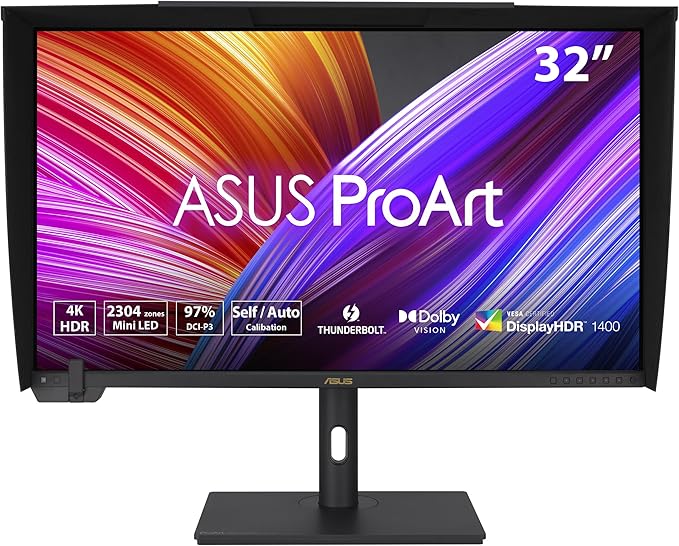
ProArt Display PA329C|Monitors|ASUS Australia
ProArt Display PA329C|Monitors|ASUS Australia
in 3 offers
The lowest price for Asus ProArt PA329C 32" 16:9 4K HDR IPS Display, 32", 3840 x 2160, 75 76Hz, Creative Monitor, Connection 3.5mm right now is $899.00 at MegaBuy, compared across 2 retailers.
The all-time low was $700.00 on 12 May 2026 — today's price is 28% above the lowest ever. It has been notably cheaper before — worth setting a price alert.
Prices last updated 4 June 2026.
Asus ProArt PA329C 32" 16:9 4K HDR IPS Display, 32", 3840 x 2160, 75 76Hz, Creative Monitor, Connection 3.5mm
ProArt Display PA329C|Monitors|ASUS Australia
ProArt Display PA329C|Monitors|ASUS Australia
Last updated at 04/06/2026 19:53:00
[PA329C-DP-RFB] Asus ProArt PA329C 32" 4K USB-C Monitor - 3840x2160, 16:9, 100% AdobeRGB, 98% DCI-P3, USB-C PD, 3 x HDMI, DP, Spk, 12 Mth Wty (Dead
[MOAPA329C] Asus PA329C ProArt 32 inch 4K UHD Monitor - 3840x2160
7-day returns
Asus ProArt PA329C 32" Class 4K UHD LCD Monitor - 16:9 - Black - 32" Viewable - In-plane Switching (IPS) Technology - LED Backlight - 3840 x 2160 - -
Free delivery between Mon – Thu
originally posted on bhphotovideo.com
TL;DR: great monitor, if your desk is very well lit. FindDynamic Dimming in settings and make sure it's turned off. Factory-calibrated modes give you better color accuracy than ASUS calibration software.Brightness and flickering:Backlight LEDs in this thing are insanely powerful. Crank brightness all the way up, and your retinas will beg for mercy. While this might not be a bad thing when you are working in broad daylight with sun blazing through your window, it becomes problematic when you are trying to work at night in a poorly lit room. Reducing brightness all the way to zero kind of helps, but unfortunately causes a new problem: flickering. Yes, despite some reviews saying there's no flickering, it's definitely there if you set the brightness low enough. ... MoreTL;DR: great monitor, if your desk is very well lit. FindDynamic Dimming in settings and make sure it's turned off. Factory-calibrated modes give you better color accuracy than ASUS calibration software.Brightness and flickering:Backlight LEDs in this thing are insanely powerful. Crank brightness all the way up, and your retinas will beg for mercy. While this might not be a bad thing when you are working in broad daylight with sun blazing through your window, it becomes problematic when you are trying to work at night in a poorly lit room. Reducing brightness all the way to zero kind of helps, but unfortunately causes a new problem: flickering. Yes, despite some reviews saying there's no flickering, it's definitely there if you set the brightness low enough. And there's a setting called Dynamic Dimming, which makes it much worse, so make sure you disable that. Without Dynamic Dimming flickering is barely noticeable, but still present at brightness levels close to zero. It gradually disappears as you increase the brightness.Color accuracy:For whatever reason ASUS calibration software is not that great at calibrating the monitor. I tried running it, applying the resulting profile to User 1 mode and then measuring calibration accuracy. I repeated this several times for sRGB and AdobeRGB color spaces, and every time the result was worse than the corresponding factory-calibrated mode.Default mode:If for some reason you are using the default mode, there's an .icm file you can download and install that will make your colors accurate.
originally posted on bhphotovideo.com
There's a reason this monitor has been sold out on/off for the last six months. For design/photo/video work, it checks all the right boxes, it's screen ratio (3840x2160) is easier to work in with multiple apps and/or one with room for all your menus, and for me, it's better with one of these than two smaller screens (plus laptop screen).For just over 1K, you can't go wrong with this!I use this plugged into a fairly new laptop via the supplied USB-C cable running a nVidia 3080 card. So far, so good, and no dead pixels nor screen bleed. I was using an older NEC IPS monitor prior (non 4k/HD) and what a difference. It's bright, accurate, and it let's you choose the color mode you want to work in (sRGB, Adobe RGB, DCI-P3, etc.), depending on web vs photo vs video. I ... MoreThere's a reason this monitor has been sold out on/off for the last six months. For design/photo/video work, it checks all the right boxes, it's screen ratio (3840x2160) is easier to work in with multiple apps and/or one with room for all your menus, and for me, it's better with one of these than two smaller screens (plus laptop screen).For just over 1K, you can't go wrong with this!I use this plugged into a fairly new laptop via the supplied USB-C cable running a nVidia 3080 card. So far, so good, and no dead pixels nor screen bleed. I was using an older NEC IPS monitor prior (non 4k/HD) and what a difference. It's bright, accurate, and it let's you choose the color mode you want to work in (sRGB, Adobe RGB, DCI-P3, etc.), depending on web vs photo vs video. I recommend going through the menu system to look at the myriad of adjustments you can make...there's one for every possible thing you could think of.Also, check the input first as it comes with the Display Port enabled by default...thought it wasn't registering and then changed it to USB-C and voil, all is right. Currently, I can't find any cons to it.Overall, I highly recommend this monitor. It's my first Asus, and if it holds up, won't be my last.
originally posted on bhphotovideo.com
I've had this display for a few weeks now. It is a replacement for the Benq PD3220U I tried and returned. What I like about this ASUS model is it supports hardware calibration while competing in price with other displays that only support software calibration. It also has a brighter image output. This is for when I'm working from home, not a controlled production studio environment, so the extra brightness is needed. I find the on-screen menu system is pretty easy to navigate, so that's good as well.There are a couple negatives though. One is the ASUS calibration software on macOS. It hasn't been updated in a couple years, and would repeatedly become unresponsive on my M1 Max MBP. I could not even start a calibration, which totally defeats the purpose of this ... MoreI've had this display for a few weeks now. It is a replacement for the Benq PD3220U I tried and returned. What I like about this ASUS model is it supports hardware calibration while competing in price with other displays that only support software calibration. It also has a brighter image output. This is for when I'm working from home, not a controlled production studio environment, so the extra brightness is needed. I find the on-screen menu system is pretty easy to navigate, so that's good as well.There are a couple negatives though. One is the ASUS calibration software on macOS. It hasn't been updated in a couple years, and would repeatedly become unresponsive on my M1 Max MBP. I could not even start a calibration, which totally defeats the purpose of this monitor. So I used a spare PC to run and store the hardware calibration. If you don't have access to a Windows PC, you might hold off on this display until they update their software. Also, although the native display on my MBP comes on immediately when waking the computer, the ASUS display takes ~10sec. That's a bit annoying.Otherwise, I like this display and don't really know what other option there is for these features in this price range.
[PA329C-DP-RFB] Asus ProArt PA329C 32" 4K USB-C Monitor - 3840x2160, 16:9, 100% AdobeRGB, 98% DCI-P3, USB-C PD, 3 x HDMI, DP, Spk, 12 Mth Wty (Dead
[MOAPA329C] Asus PA329C ProArt 32 inch 4K UHD Monitor - 3840x2160
7-day returns
Asus ProArt PA329C 32" Class 4K UHD LCD Monitor - 16:9 - Black - 32" Viewable - In-plane Switching (IPS) Technology - LED Backlight - 3840 x 2160 - -
Free delivery between Mon – Thu
TL;DR: great monitor, if your desk is very well lit. FindDynamic Dimming in settings and make sure it's turned off. Factory-calibrated modes give you better color accuracy than ASUS calibration software.Brightness and flickering:Backlight LEDs in this thing are insanely powerful. Crank brightness all the way up, and your retinas will beg for mercy. While this might not be a bad thing when you are working in broad daylight with sun blazing through your window, it becomes problematic when you are trying to work at night in a poorly lit room. Reducing brightness all the way to zero kind of helps, but unfortunately causes a new problem: flickering. Yes, despite some reviews saying there's no flickering, it's definitely there if you set the brightness low enough. ... MoreTL;DR: great monitor, if your desk is very well lit. FindDynamic Dimming in settings and make sure it's turned off. Factory-calibrated modes give you better color accuracy than ASUS calibration software.Brightness and flickering:Backlight LEDs in this thing are insanely powerful. Crank brightness all the way up, and your retinas will beg for mercy. While this might not be a bad thing when you are working in broad daylight with sun blazing through your window, it becomes problematic when you are trying to work at night in a poorly lit room. Reducing brightness all the way to zero kind of helps, but unfortunately causes a new problem: flickering. Yes, despite some reviews saying there's no flickering, it's definitely there if you set the brightness low enough. And there's a setting called Dynamic Dimming, which makes it much worse, so make sure you disable that. Without Dynamic Dimming flickering is barely noticeable, but still present at brightness levels close to zero. It gradually disappears as you increase the brightness.Color accuracy:For whatever reason ASUS calibration software is not that great at calibrating the monitor. I tried running it, applying the resulting profile to User 1 mode and then measuring calibration accuracy. I repeated this several times for sRGB and AdobeRGB color spaces, and every time the result was worse than the corresponding factory-calibrated mode.Default mode:If for some reason you are using the default mode, there's an .icm file you can download and install that will make your colors accurate.
There's a reason this monitor has been sold out on/off for the last six months. For design/photo/video work, it checks all the right boxes, it's screen ratio (3840x2160) is easier to work in with multiple apps and/or one with room for all your menus, and for me, it's better with one of these than two smaller screens (plus laptop screen).For just over 1K, you can't go wrong with this!I use this plugged into a fairly new laptop via the supplied USB-C cable running a nVidia 3080 card. So far, so good, and no dead pixels nor screen bleed. I was using an older NEC IPS monitor prior (non 4k/HD) and what a difference. It's bright, accurate, and it let's you choose the color mode you want to work in (sRGB, Adobe RGB, DCI-P3, etc.), depending on web vs photo vs video. I ... MoreThere's a reason this monitor has been sold out on/off for the last six months. For design/photo/video work, it checks all the right boxes, it's screen ratio (3840x2160) is easier to work in with multiple apps and/or one with room for all your menus, and for me, it's better with one of these than two smaller screens (plus laptop screen).For just over 1K, you can't go wrong with this!I use this plugged into a fairly new laptop via the supplied USB-C cable running a nVidia 3080 card. So far, so good, and no dead pixels nor screen bleed. I was using an older NEC IPS monitor prior (non 4k/HD) and what a difference. It's bright, accurate, and it let's you choose the color mode you want to work in (sRGB, Adobe RGB, DCI-P3, etc.), depending on web vs photo vs video. I recommend going through the menu system to look at the myriad of adjustments you can make...there's one for every possible thing you could think of.Also, check the input first as it comes with the Display Port enabled by default...thought it wasn't registering and then changed it to USB-C and voil, all is right. Currently, I can't find any cons to it.Overall, I highly recommend this monitor. It's my first Asus, and if it holds up, won't be my last.
I've had this display for a few weeks now. It is a replacement for the Benq PD3220U I tried and returned. What I like about this ASUS model is it supports hardware calibration while competing in price with other displays that only support software calibration. It also has a brighter image output. This is for when I'm working from home, not a controlled production studio environment, so the extra brightness is needed. I find the on-screen menu system is pretty easy to navigate, so that's good as well.There are a couple negatives though. One is the ASUS calibration software on macOS. It hasn't been updated in a couple years, and would repeatedly become unresponsive on my M1 Max MBP. I could not even start a calibration, which totally defeats the purpose of this ... MoreI've had this display for a few weeks now. It is a replacement for the Benq PD3220U I tried and returned. What I like about this ASUS model is it supports hardware calibration while competing in price with other displays that only support software calibration. It also has a brighter image output. This is for when I'm working from home, not a controlled production studio environment, so the extra brightness is needed. I find the on-screen menu system is pretty easy to navigate, so that's good as well.There are a couple negatives though. One is the ASUS calibration software on macOS. It hasn't been updated in a couple years, and would repeatedly become unresponsive on my M1 Max MBP. I could not even start a calibration, which totally defeats the purpose of this monitor. So I used a spare PC to run and store the hardware calibration. If you don't have access to a Windows PC, you might hold off on this display until they update their software. Also, although the native display on my MBP comes on immediately when waking the computer, the ASUS display takes ~10sec. That's a bit annoying.Otherwise, I like this display and don't really know what other option there is for these features in this price range.
I purchased the PA329C because I wanted a color accurate monitor that could be hardware calibrated, but didn't want to spend a small fortune for one. I came across the PA329C and it fit the bill spec and price wise, so I figured I'd give it a shot. So, far I am impressed with the color reproduction and accuracy. I had a small hiccup with the ASUS ProArt calibration software not recognizing that the USB-A to USB-C was connected to my PC, so I was unable to calibrate the monitor. After a bunch of back and forth with ASUS support, which is about useless in my opinion I had no resolution to the this issue. I found on my own that the PA329Q required a ProArt_Calibration_Device_Driver in order for the PA329Q to be calibrated with the ProArt calibration software. After ... MoreI purchased the PA329C because I wanted a color accurate monitor that could be hardware calibrated, but didn't want to spend a small fortune for one. I came across the PA329C and it fit the bill spec and price wise, so I figured I'd give it a shot. So, far I am impressed with the color reproduction and accuracy. I had a small hiccup with the ASUS ProArt calibration software not recognizing that the USB-A to USB-C was connected to my PC, so I was unable to calibrate the monitor. After a bunch of back and forth with ASUS support, which is about useless in my opinion I had no resolution to the this issue. I found on my own that the PA329Q required a ProArt_Calibration_Device_Driver in order for the PA329Q to be calibrated with the ProArt calibration software. After doing a comparison between the PA329C and PA329Q they appear to be pretty much the same monitor, so I figured I'd try installing the ProArt_Calibration_Device_Driver and see if it would resolve my issue. And much to my surprise it did and I was able to finally calibrate my PA329C. The monitor itself is great, but ASUS support not so much. After 3 weeks of multiple daily back and forth emails and using their chat line I got no real solutions from them. So, if you want what seems to be so far a great color accurate monitor that can be hardware calibrated at a reasonable price, then the PA329C is a great option. Just be prepared if you have any issues, that ASUS support is subpar to say the least.
This is a great monitor overall. Vibrant accurate colors. The best for the money you can buy. Any other 32 inch 4k monitors you're going to pay a lot more for, and they're not even 100% Adobe RGB like this is. It's also very bright, I had to turn the brightness all the way down to edit for print, which brings it to about 82-85 nits. The only reason I gave it 4 instead of 5 stars is because, like another reviewer said here, the Proart callibrator software for Mac OS hasn't been updated since 2020 and is not compatible with the new Macbook Pro M1 series notebooks. The windows version has been updated in late 2021. Don't know why Asus is alienating Mac users. Anyways, even though I can't hardware callibrate it because of that, I can still software callibrate it with my ... MoreThis is a great monitor overall. Vibrant accurate colors. The best for the money you can buy. Any other 32 inch 4k monitors you're going to pay a lot more for, and they're not even 100% Adobe RGB like this is. It's also very bright, I had to turn the brightness all the way down to edit for print, which brings it to about 82-85 nits. The only reason I gave it 4 instead of 5 stars is because, like another reviewer said here, the Proart callibrator software for Mac OS hasn't been updated since 2020 and is not compatible with the new Macbook Pro M1 series notebooks. The windows version has been updated in late 2021. Don't know why Asus is alienating Mac users. Anyways, even though I can't hardware callibrate it because of that, I can still software callibrate it with my Spyder X. That works just as well and produces accurate colors for print.
Overall I'm quite pleased with the PA329C, which I bought to go with my Mac Studio computer. I'm a professional photographer and was looking for a 32-inch 4K display that would cover all or most of the Adobe RGB color space without breaking the bank. The Asus does that. Setup was simple, and I connected the display to the computer using the supplied HDMI cable. Out of the box the display was bright and crisp with no sign of any dead pixels. The OSD is easily accessible and adjustable thanks to the joystick at the lower back edge of the monitor. The display easily slides up and down to the desired height and can easily be rotated 90 degrees to access the various ports on the lower back of the monitor. I'd give it five stars except for a couple of things. There are ... MoreOverall I'm quite pleased with the PA329C, which I bought to go with my Mac Studio computer. I'm a professional photographer and was looking for a 32-inch 4K display that would cover all or most of the Adobe RGB color space without breaking the bank. The Asus does that. Setup was simple, and I connected the display to the computer using the supplied HDMI cable. Out of the box the display was bright and crisp with no sign of any dead pixels. The OSD is easily accessible and adjustable thanks to the joystick at the lower back edge of the monitor. The display easily slides up and down to the desired height and can easily be rotated 90 degrees to access the various ports on the lower back of the monitor. I'd give it five stars except for a couple of things. There are three USB type A ports on the left edge. I've found them to be a little loosey-goosey, so that often when I plug in a thumb drive it won't stay sufficiently tight for the drive to stay mounted. Also, I was looking forward to the monitor having built-in speakers. But, they're of limited value, at least when used with a Mac, because volume isn't easily adjustable. It's necessary to go into the OSD to change the volume, which is cumbersome. As a result, I had to buy some good Logitech external speakers that I can easily adjust using the volume knob on my Das Keyboard. I checked with Asus support about the speakers and they replied quickly to say that the OSD is in fact the only way to adjust the internal speakers. These two things aren't deal-breakers for me but not something I'd expect in a monitor at this price point.
Firstly, there are zero / none / zilch dead or stuck pixels. I was afraid of purchasing this monitor after reading all the QC (quality control) issues that the earlier iterations of this monitor had. I decided to take the chance because color and price are most important to me. My PA329C looks perfect.The only other monitor in the running was the BenQ 3220U:- it didn't have the AdobeRGB range that I needed (Asus has 100%)- has software calibration (Asus has hardware)- bit depth is only 8 bits + FRC has only 10bit (Asus has true 10 bit)- brightness is only 250-300 nits (Asus is 400 nits typically with peak being 600nits- has software calibration (Asus has hardware calibration 14bit LUT)- is not really HDR10 (Asus is HDR, Display HDR600)- is 60hz ... MoreFirstly, there are zero / none / zilch dead or stuck pixels. I was afraid of purchasing this monitor after reading all the QC (quality control) issues that the earlier iterations of this monitor had. I decided to take the chance because color and price are most important to me. My PA329C looks perfect.The only other monitor in the running was the BenQ 3220U:- it didn't have the AdobeRGB range that I needed (Asus has 100%)- has software calibration (Asus has hardware)- bit depth is only 8 bits + FRC has only 10bit (Asus has true 10 bit)- brightness is only 250-300 nits (Asus is 400 nits typically with peak being 600nits- has software calibration (Asus has hardware calibration 14bit LUT)- is not really HDR10 (Asus is HDR, Display HDR600)- is 60hz refresh rate (Asus is 75hz)- it has a thunderbolt connection (it's only advantage). I'm not dealing with large file transfers that would make it a benefit, I don't have a lot of external devices, and I only need this 1 monitor...There is 1 issue that I've not poked around to try and correct... I use my Mac mini M1's thunderbolt port to connect to the monitor via a USB-C to DisplayPort cord. I then use a USB-C cord to USB-C cord to connect (keyboard, hard drives, etc) back to the Mac mini M1(downstream). The issue is whenever I select the monitor via menu to use the DisplayPort to get the video signal, it keeps switching to USB-C (downstream cord) for the video signal and I can no longer use my wired keyboard. The trick is to restart the computer and leave the USB-C downstream unplugged until the computer is running and I can choose to use the DisplayPort signal from the monitor's menu. Then I replug my USB-C downstream cord back-in, and everything works perfectly (even waking from sleep). Again this issue only happens when restarting the machine, so my work around is to use a USB-C Male to Female On/Off Switch Cable, and I simply turn the USB-C tp USB-C downstream cable off whilst restarting the M1 Mac. Then I can choose use the DisplayPort from the monitor's menu, and then turn back on the USB-C downstream cable on again.
After exhaustive searching and returning other brand models, I am happy to stop playing monitor roulette and keep this ASUS ProArt PA329C.Aesthetics:The ASUS ProArt PA329C is a great looking monitor. In my opinion online photos make it look a little dated but it isn’t so, it is a very modern and capable monitor. I have a showpiece, recently built PC, and this monitor receives praises from visitors. I didn’t intend for the monitor to be “-mired” but it flexes in just the right ways. Thankfully ASUS didn’t waste time and money on RGB, which would take away from the suit-and-tie type of monitor that it is IMO.Color:It can flex and look good, but can it can it be beautiful? Yes, yes it can. Having several color gamut spaces with factory color certification, it is ... MoreAfter exhaustive searching and returning other brand models, I am happy to stop playing monitor roulette and keep this ASUS ProArt PA329C.Aesthetics:The ASUS ProArt PA329C is a great looking monitor. In my opinion online photos make it look a little dated but it isn’t so, it is a very modern and capable monitor. I have a showpiece, recently built PC, and this monitor receives praises from visitors. I didn’t intend for the monitor to be “-mired” but it flexes in just the right ways. Thankfully ASUS didn’t waste time and money on RGB, which would take away from the suit-and-tie type of monitor that it is IMO.Color:It can flex and look good, but can it can it be beautiful? Yes, yes it can. Having several color gamut spaces with factory color certification, it is spectacular straight out of the box. It does come with factory calibration paperwork. You can calibrate it yourself, if you have the equipment and are using it professionally, but straight outta the box is really good. It is a true 10-bit panel and NOT an 8-bit Frame Rate Control (FRC) poser that so many others are.Performance:It DOES have Variable Refresh Rate (VRR) as adaptive sync. I am able to run FreeSync with it. It’s maximum 60hz refresh rate but I use this more for video editing, CAD and flight sim. So, I don’t need or care about higher refresh rates for the time being. No issues with the refresh rate whatsoever.After vegetating my brain all day at work with boring powerpoints and meetings I like to use my personal PC with this monitor in the evenings. My eyes are susceptible to flicker and pulse-width modulation. I had to return other brand 4K and 5K monitors because after using them for 20 minutes, my eyeballs were burned and chaffed so badly I wanted to put aloe on them. This monitor must be flicker free because I receive no eye-strain or ill-effects from it.Suggestions:Bigger is better and 32” is a sweet spot. Use a screen splitter but don’t waste your time with aftermarket programs. Just enable Microsoft PowerToys – FancyZones. It is better than most screen splitter software applications.Summary:4K, amazing color, true 10-bit, adaptive sync, flicker-free, attractive and functionally fantastic for its price point.
The PA329C 32 is a pleasure to use. The stand is very solid and easily adjustable. The color accuracy right out of the box was exacting. You have to use the menu toggle to select the Adobe RGB color space. Two things, 1) There is an ON/OFF switch up under the monitor at the far right beyond the graphics card plugs AND there is an ON/OFF push switch at the very bottom right of the options panel. So, dah, both must be on; 2) to get the USB-C hub to work you must select that option in the menu AND run the supplied USB-C to USB-C port cable to your computer. The USB-C isn't magic, it is a powered extension of your computer's USB-C feature. I use it to transfer images and charge my Nikon Z7II. Very handy. It has a 60 watt potential. I was truly amazed as I upgraded from ... MoreThe PA329C 32 is a pleasure to use. The stand is very solid and easily adjustable. The color accuracy right out of the box was exacting. You have to use the menu toggle to select the Adobe RGB color space. Two things, 1) There is an ON/OFF switch up under the monitor at the far right beyond the graphics card plugs AND there is an ON/OFF push switch at the very bottom right of the options panel. So, dah, both must be on; 2) to get the USB-C hub to work you must select that option in the menu AND run the supplied USB-C to USB-C port cable to your computer. The USB-C isn't magic, it is a powered extension of your computer's USB-C feature. I use it to transfer images and charge my Nikon Z7II. Very handy. It has a 60 watt potential. I was truly amazed as I upgraded from a 27 monitor some eight years old. I thought I would lose some 4K resolution but that did not happen a all. I thought it might be too big but it is not. Supplied cables were long enough to easily reach my PC a 35 arm's length away. This monitor is bright and the colors are stunningly accurate. So there it is. It won't make a cappuccino but it will display the colors you expect at the brightness and contrast you prefer!
I purchased two of these monitors. When they work, they are fantastic. But when they don't, strap in. You're in for a ride. The left side of one monitor started flashing rapidly like a strobe light while under warranty. I contacted support. I requested an advanced exchange (the warranty is supposed to send you a replacement first, and then you send back the defective item within 14 days). I was told they could not honor that as no stock was available; my only choice was to send it to their California service center (I would be required to supply my own box; they won't provide a box for safe transit). I asked how long that would take. I was told 7-15 business days normally but that COVID has affected their turnaround and it may take longer. How much longer, I asked? ... MoreI purchased two of these monitors. When they work, they are fantastic. But when they don't, strap in. You're in for a ride. The left side of one monitor started flashing rapidly like a strobe light while under warranty. I contacted support. I requested an advanced exchange (the warranty is supposed to send you a replacement first, and then you send back the defective item within 14 days). I was told they could not honor that as no stock was available; my only choice was to send it to their California service center (I would be required to supply my own box; they won't provide a box for safe transit). I asked how long that would take. I was told 7-15 business days normally but that COVID has affected their turnaround and it may take longer. How much longer, I asked? I was told that they don't have many of the parts and so it could be a lengthy wait (they have to come from China). And what if the part never becomes available or the problem isn't repairable? They would find a replacement then. Let me boil it down - they won't honor warranty replacement now so how can they honor it later? Would they even if they could? MY ADVICE is to buy a monitor from another manufacturer and keep warranty and service needs in mind when you do so.